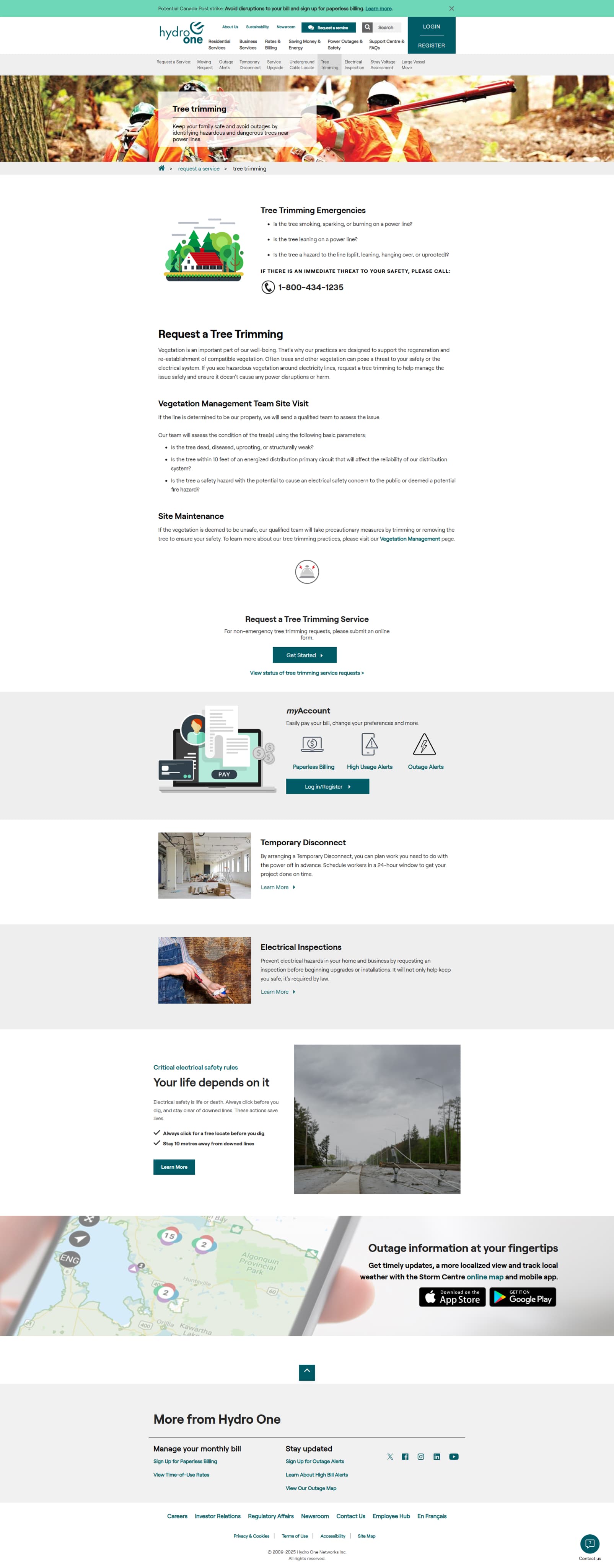
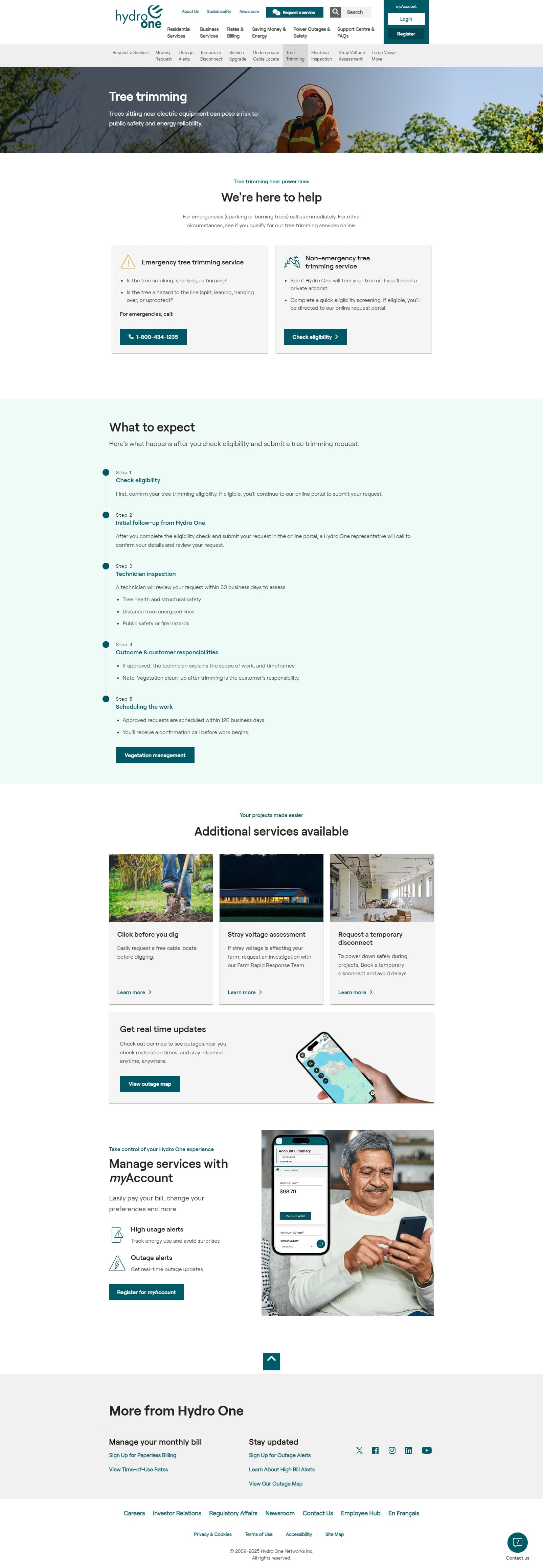

The Problem
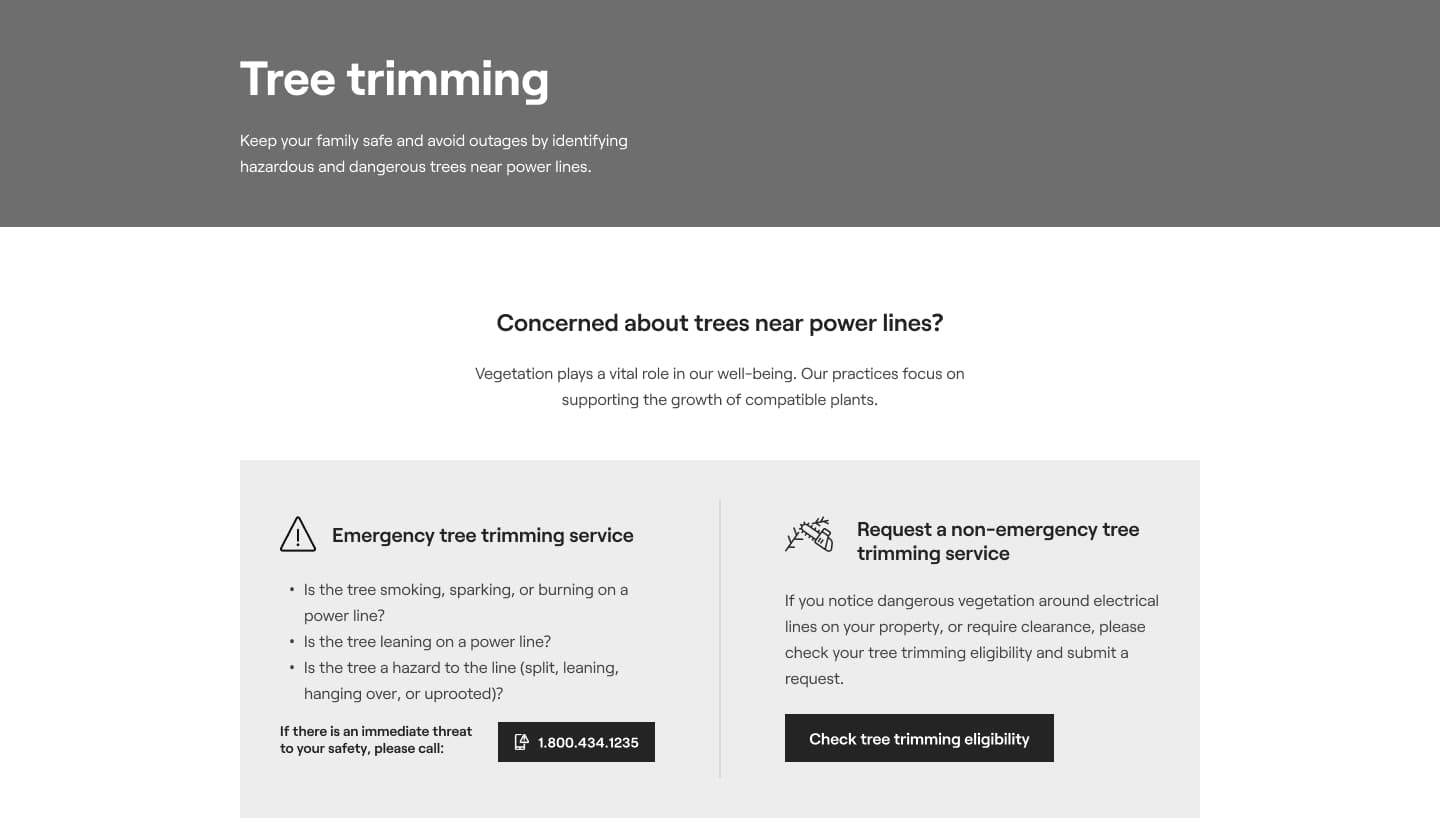
Hydro One's tree trimming request form was creating operational chaos. Users couldn't figure out if they qualified for service.
- High volume of ineligible requests wasting forestry resources
- Unnecessary site visits and administrative overhead
- Customer service team fielding clarification calls
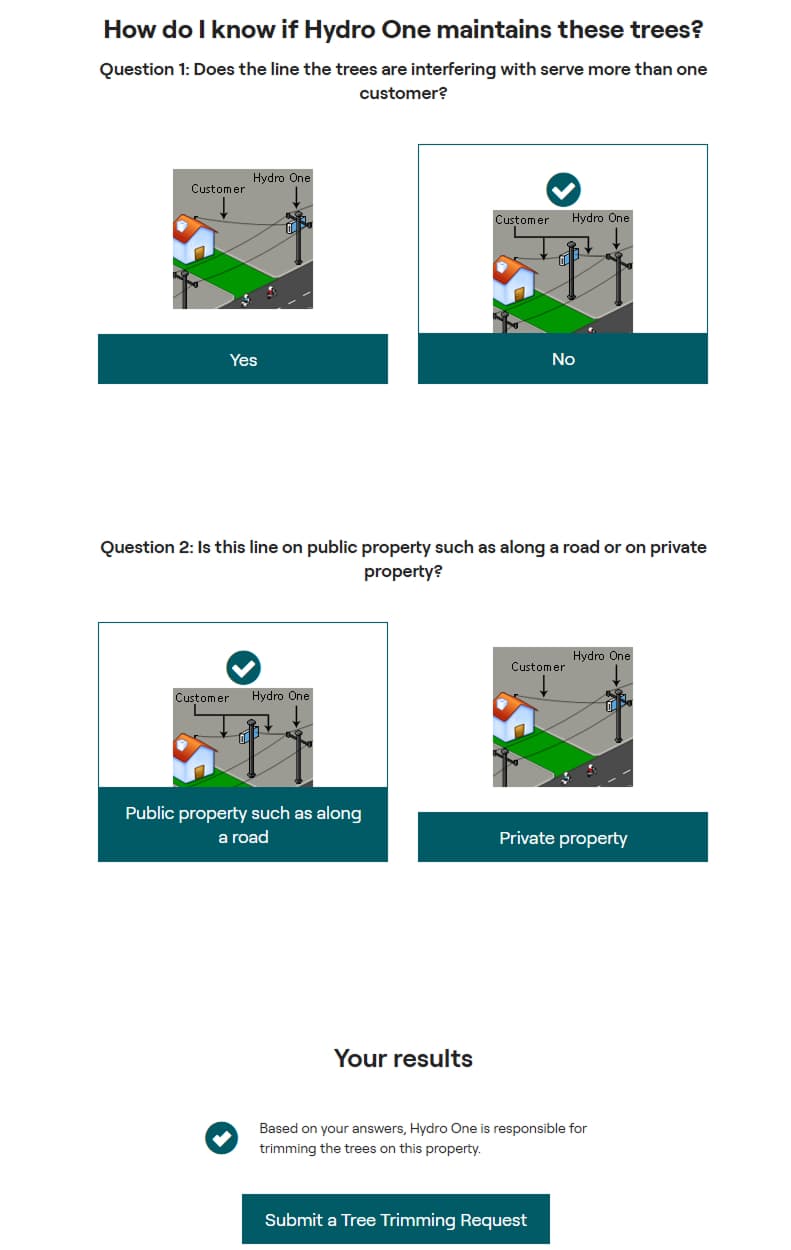
- Confusing diagrams that didn't clearly explain responsibility
- Unclear language about eligibility criteria
- Process felt like a guessing game
How might we help customers accurately self-assess eligibility before submitting requests, reducing false positives while maintaining accessibility for those who genuinely need service?
The Design Process
Research & Competitive Analysis
I analyzed how other utilities handled tree trimming eligibility, looking for patterns in how they helped users self-assess.
Key finding: Duke Energy used a numbered diagram with explanations below—the most intuitive approach we found. Users could match their situation to a specific numbered scenario.
Stakeholder presentation: Shared competitive analysis findings with the forestry department. They agreed this numbered diagram approach was clearest for customers.
Iteration 1: Initial Redesign
Approach: Simplify to one core question, move the screening process higher on the page (was buried halfway down), and use numbered diagrams with color-coded eligibility indicators. Also add in a timeline to show what happens after submitting the request.
Iteration 1: Lo-fi Design
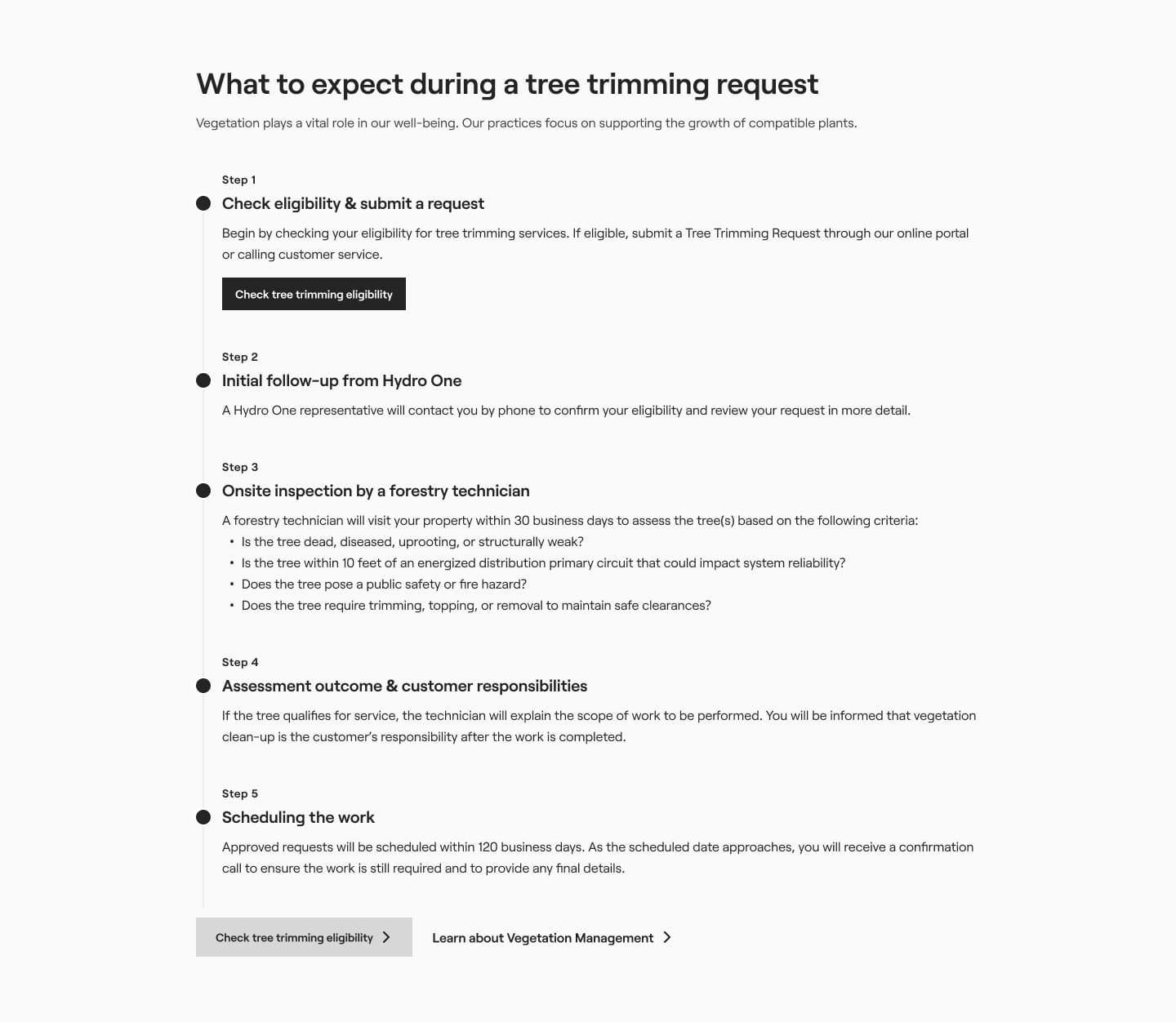
Iteration 1: Eligibility Form Flow
I simplified the form and added color-coded visual feedback to make eligibility clearer.
Design changes made:- Simplified from multiple questions to one focused eligibility check
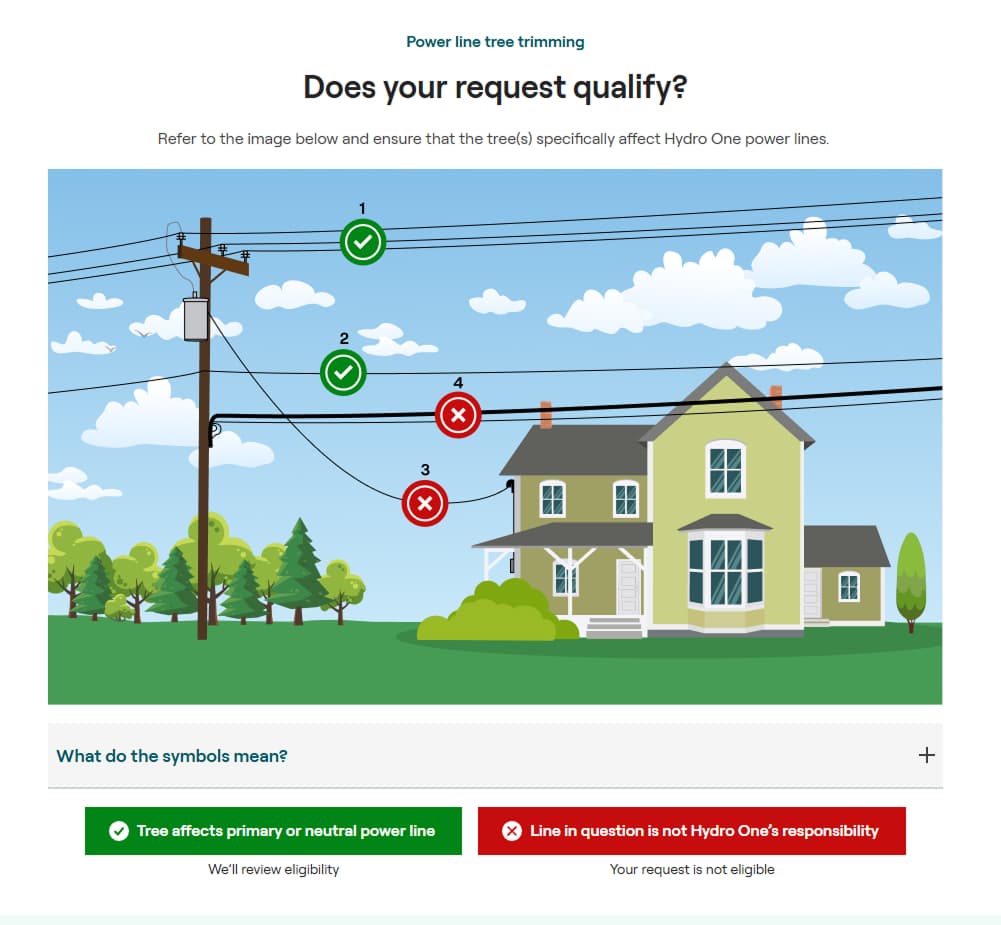
- Numbered power line zones on a diagram (inspired by Duke Energy)
- Green checkmarks for eligible scenarios, red X marks for ineligible
- Moved eligibility tool to top of page for better visibility
Hypothesis: Color coding would help users quickly identify their eligibility.

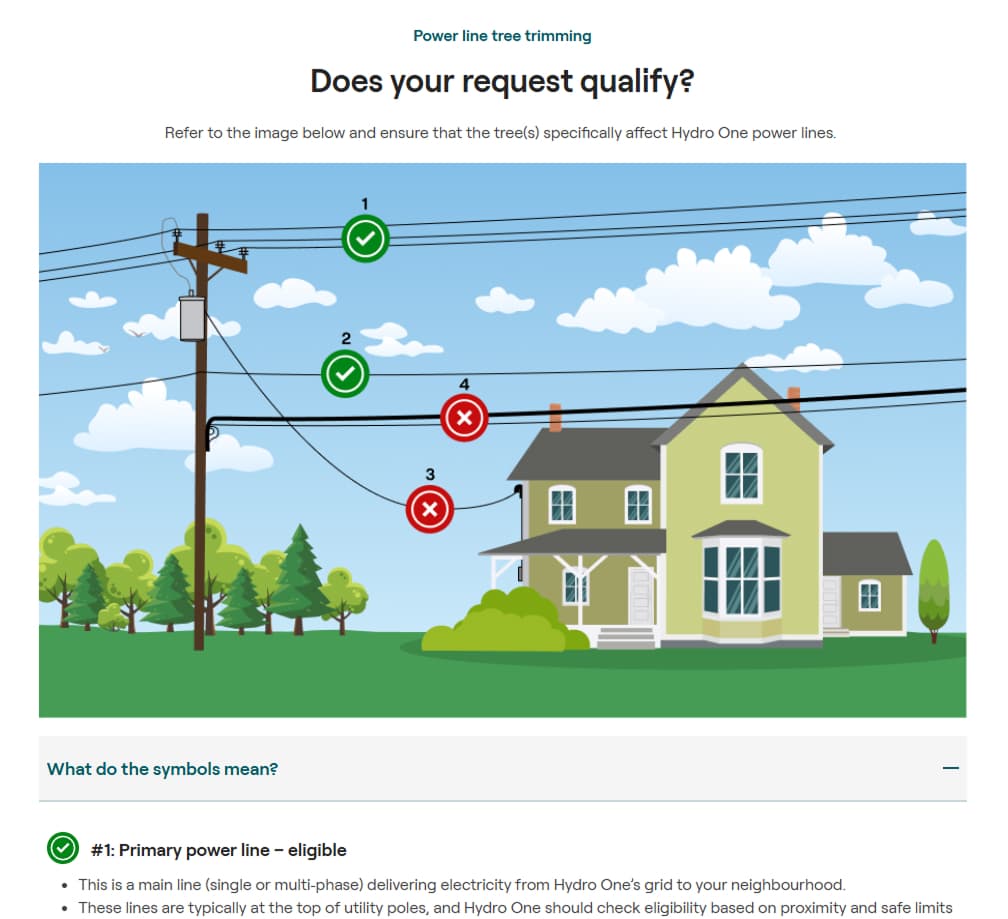
How It Works
User sees diagram with red or green markers
Opens accordion to learn about markers
User reads details about their scenario
User confirms "This is my situation"
User clicks the green or red button based on eligibility
Testing Iteration 1 Revealed a Problem
Method: Moderated usability testing with 5 Hydro One employees (not from forestry department) over two weeks—week 1 tested the initial design, week 2 focused on refinements.
Test Scenario Examples:- “You notice a tree overgrown near a power line, but it’s not sparking or burning. Use this page to find out if Hydro One will handle this request.”
- “Look at the diagram and decide if Hydro One is responsible for trimming a tree near the line labeled #3.”
- “Assume the tree affects a primary power line (#1). Complete the steps to submit a trimming request.”
What we discovered:
"I don't want to click the red one—it looks like an error"
— User avoiding the correct answer because of color coding
Additional issues:
Iteration 2: Interactive, Neutral Design
1. Remove judgment, enable exploration
Instead of showing eligibility upfront with color, let users explore scenarios neutrally.
2. Flip the interaction model
Instead of asking users to answer questions, let them explore scenarios neutrally to find theirs.
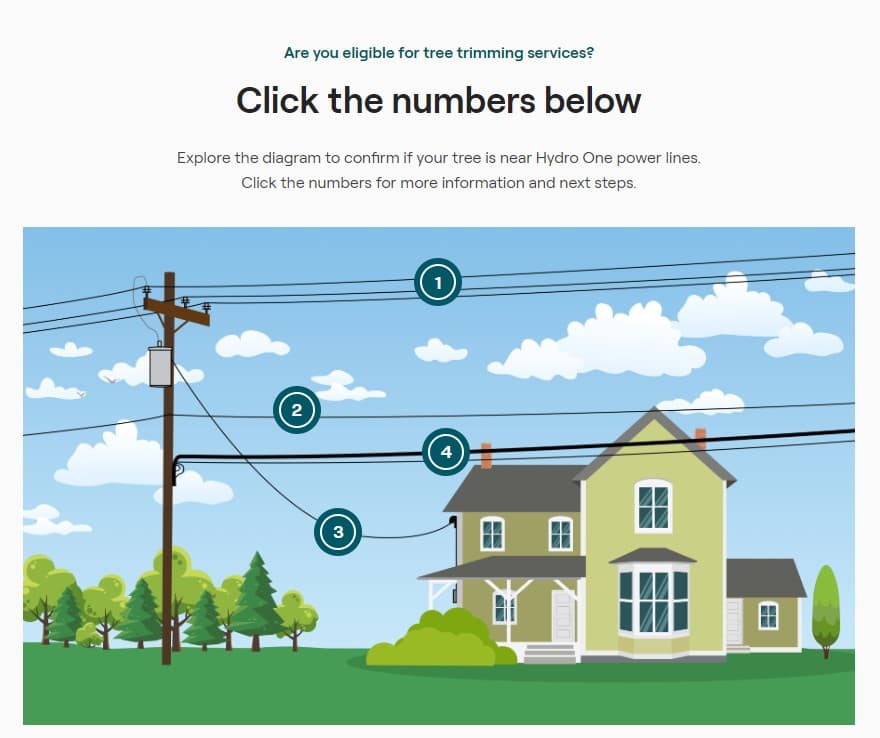
Key Design Changes:
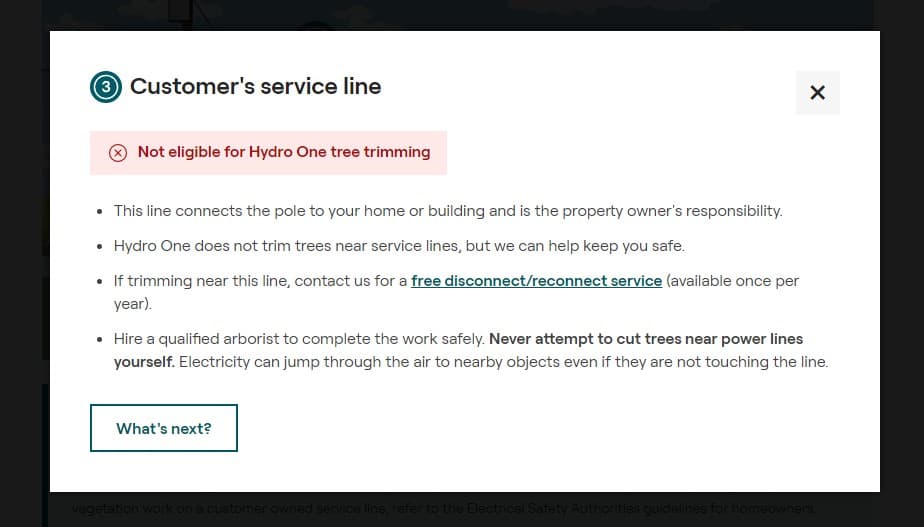
Made diagrams interactive
Clickable zones reveal details on demandRemoved color bias
Neutral presentation until user commits to their scenarioHonest self-assessment
Users find their actual situation, not the "right answer"
How It Works
User sees neutral diagram with numbered zones
Clicks zone that matches their situation
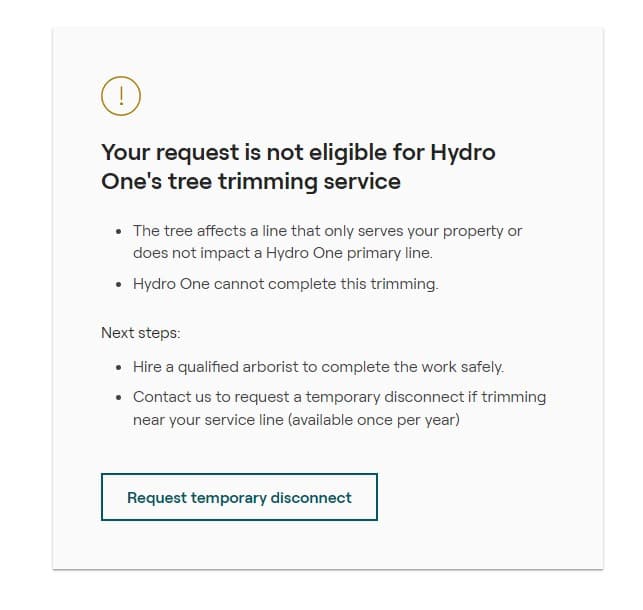
Modal opens with clear explanation
User confirms "This is my situation"
Next steps provided based on outcomey
Iteration 2: User Testing
Tested the interactive prototype with a second group of 3 participants.
Results:
Conclusion: Users explored scenarios honestly instead of trying to game the system.
Design + Development
We designed and built this solution end-to-end.
This allowed rapid iteration. I was able to test interactions in the browser same-day, make changes based on feedback immediately, and ensure implementation matched design intent.
Built with: JavaScript, HTML5, CSS3.
Accessibility: WCAG 2.1 AA (keyboard nav, ARIA labels, screen reader support)
The Impact
Microsoft Clarity data comparing November (before) vs. December (after redesign):
Ongoing measurement: Continuing to track long-term operational impact on invalid request volumes and resource efficiency.